
When To Use This
- You want to manage Nusabase API keys and model settings in CC Switch.
- You use multiple AI coding tools such as Claude Code, Codex, OpenCode, OpenClaw, and Hermes.
- You prefer switching Providers in a graphical interface instead of editing JSON/TOML files by hand.
- You want CC Switch to fetch the Nusabase model list for you.
Prerequisites
- CC Switch is installed.
- The target CLI tools are installed and have been launched at least once so they create their default config directories.
- You have a Nusabase API key:
sk-.... - Your machine can reach
https://api.nusabase.io. - The example model
qwen3.5-flashis only for demonstration; use/v1/modelsas the source of truth for your account.
Install CC Switch
After installing, open CC Switch. On the left side of the interface, select Tools, and on the right side, manage the Provider for this tool. Click the + in the top right corner to add a new Provider.
Verify Nusabase First
Before configuring CC Switch, confirm that your API key and model access work.Quick Setup Flow
- At the top of the CC Switch interface, choose the tool you want to configure, like Claude Code, Codex, or OpenCode.
- Click the + button in the top-right corner.
- Choose the right preset: Custom is typical for Claude Code; OpenAI Compatible or Custom is typical for OpenAI-compatible tools.
- Fill in the Provider name, API key, Endpoint URL, and model.
- If available, click the Fetch Models button next to the model field to pull models from Nusabase
/v1/models. - Click Add.
- Click Enable on the Provider card.
- Restart the terminal or reopen the CLI as required by the tool, then send a test message.
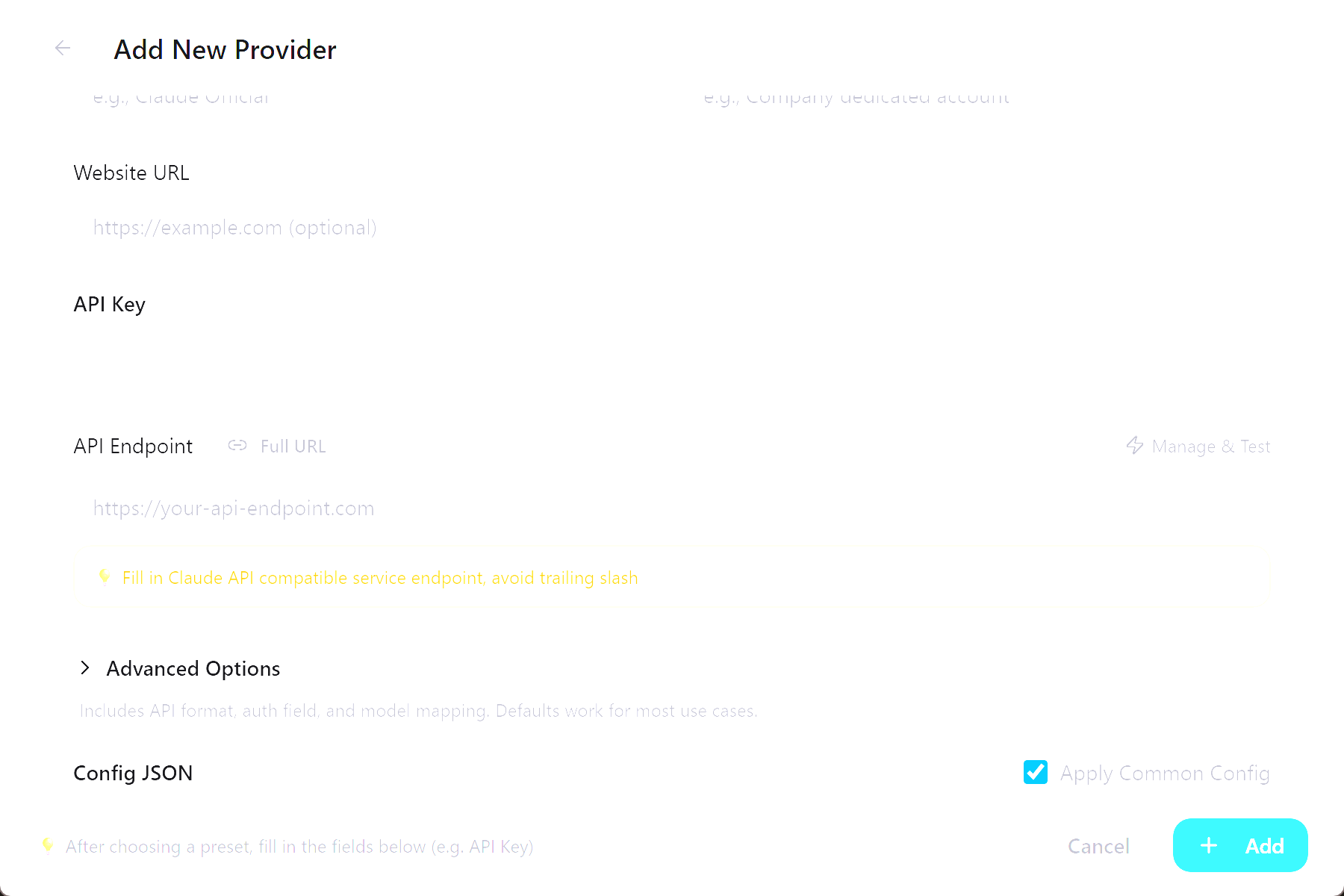
Nusabase Settings Table
Common fields:
Do not paste a full endpoint path such as
https://api.nusabase.io/v1/chat/completions into Endpoint URL. CC Switch and the target tool append the protocol-specific path.Claude Code Notes
Claude Code appends/v1/messages to ANTHROPIC_BASE_URL, so the Endpoint URL must be the root URL:
If you manually edit
~/.claude/settings.json, the usual shape is:
ANTHROPIC_AUTH_TOKEN if you want Claude Code to send authentication as Authorization: Bearer.
Codex Notes
Codex clients call the OpenAI Responses API. When connecting Codex to Nusabase through CC Switch, enable CC Switch local routing and set the Provider’s upstream format toChat Completions. CC Switch will convert Codex /responses requests into Nusabase OpenAI-compatible Chat Completions requests.
Set Endpoint URL to:
Codex Local Routing
Local routing is recommended for Codex with Nusabase. It is useful when:- You want CC Switch to convert Codex
/responsesrequests into Nusabase’s more stable/chat/completionspath. - You want all Codex requests to pass through CC Switch and appear in its routing logs.
- You are debugging Provider switching or request forwarding and need to observe the proxy path.
- Open CC Switch Settings → Advanced → Routing Service.
- Start the routing service. The default listener is
127.0.0.1:15721. - In App Routing, enable the Codex routing toggle.
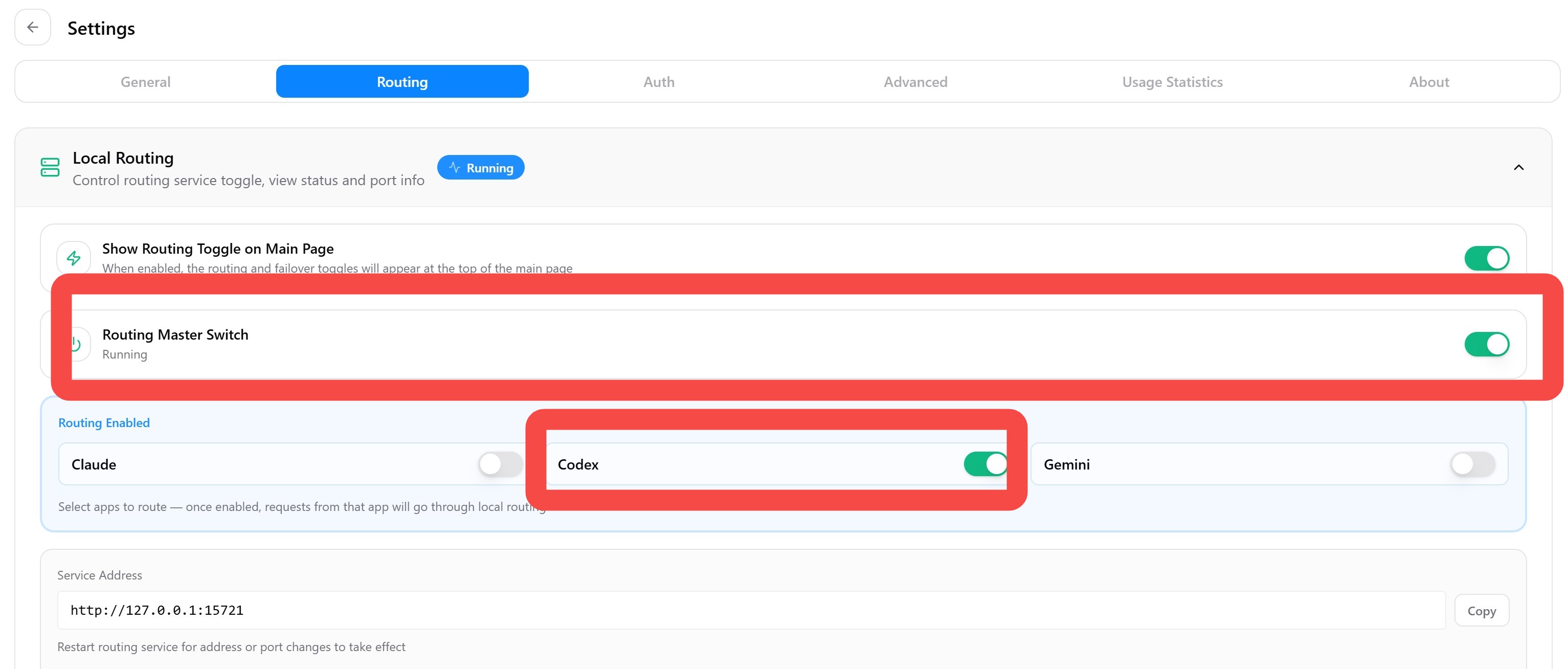
- In the Codex Nusabase Provider advanced options, set the Upstream Format to “Chat Completions”.
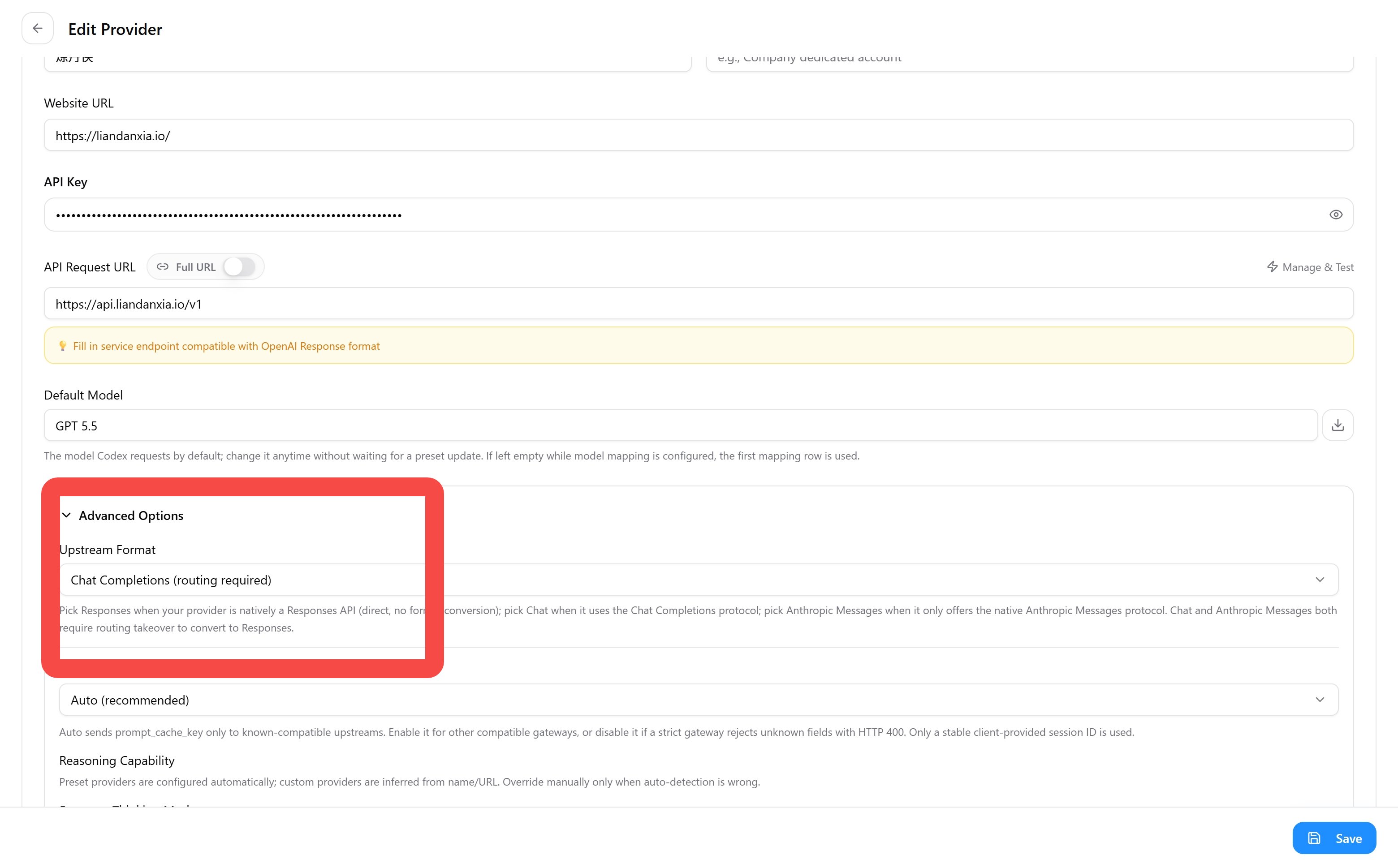
- Keep Endpoint URL as
https://api.nusabase.io/v1.
OpenCode / OpenClaw / Hermes Notes
When these tools use OpenAI-compatible Chat Completions, set Endpoint URL to:
After configuration, close and reopen the terminal, then start the target tool.
Fetch Models
CC Switch can fetch models from the Provider’s model endpoint. After filling in API Key and Endpoint URL, click the Fetch Models button next to the model field. Common failures:Apply And Verify
Provider switching behavior varies by tool:
Success criteria:
- The Nusabase Provider is enabled in CC Switch.
- The tool’s model picker or
/modelcommand shows the Nusabase model. - A test message returns normally.
- If you use Codex local routing, CC Switch’s routing panel shows proxied request logs.
Troubleshooting
See Models and Pricing for current models, context windows, and pricing.